Join GeoAttend in under a minute
Sign in with your Google account, add your institution code, and you're ready to check in.
You'll need
- Google accountyour Gmail
- Institution codeINST-XXXXXX
- Phone numbere.g. 024 123 4567
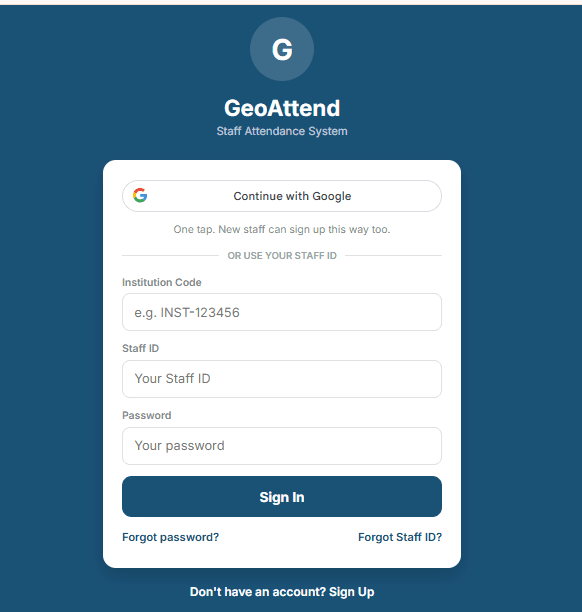

Sign up once
Six quick steps. You only do this the first time.
- 1
Open the GeoAttend link
Open geoattend-mu.vercel.app/staff in Chrome on Android or Safari on iPhone.
geoattend-mu.vercel.app/staffAndroid: ChromeiPhone: Safari - 2
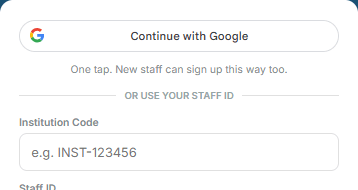
Tap Continue with Google
It's the first button at the top. New staff sign up this way too.
- 3
Choose your Google account
Pick the Gmail account you want to use for work attendance.
Choose an account
to continue to GeoAttend
YYour Nameyou@gmail.comUse another accountIllustration. Your screen may look slightly different.
- 4
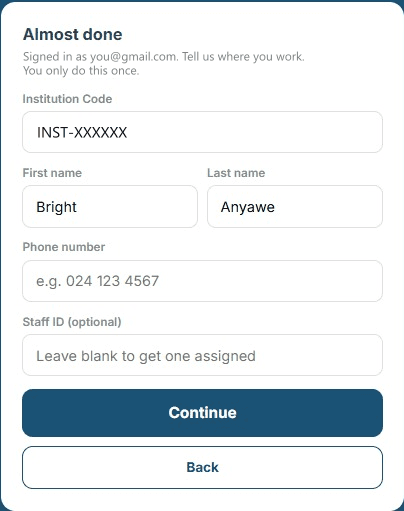
Fill in the “Almost done” screen
- 1Institution Code: type INST-XXXXXX
- 2First / Last name: already filled in from Google, so check them
- 3Phone number: e.g. 024 123 4567
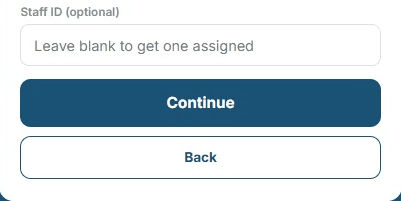
- 4Staff ID: leave blank unless you were given one. You'll get one automatically.
- 5
Tap Continue
You're signed in.
- 6
Tap Allow for location
When asked, tap Allow. GeoAttend needs your location to confirm you're at work when you check in.
geoattend-mu.vercel.app wants to
Know your location
BlockAllowIllustration. Your browser's prompt may look different.
Every day after that
- Open the linkOr tap GeoAttend on your home screen.
- Continue with GooglePick the same Google account.
- Check In, then Check OutCheck In when you arrive. Check Out when you leave.
Add it to your home screen so it works like an app
iPhone (Safari)
Share Add to Home Screen
Android (Chrome)
Menu Add to Home screen
Something not working?
The page is slow the first time
Wait up to a minute. The server may be starting up.
“Invalid institution code”
Check the code with your administrator.
“Location is blocked”
Turn on location/GPS, allow it for the site, then tap Refresh location.
“Linked to a different institution”
That Google account is already used at another school or company. Use a different account or ask your administrator.
Need your Staff ID?
It’s on the Profile tab.
Share this guide with your team
Send it on WhatsApp, or put it on screen during onboarding so people can scan and follow along.
Admins: add your institution code to the link, like optisware.com/join?code=INST-123456, and the guide shows it to your staff.

Prefer the Android app? Download the GeoAttend APK